
Blog posts are updates about your project that are shared on your project page and can be sent via email. You can use them during your crowdfunding campaign to keep your community informed, share insights, and send important updates via email. Depending on your settings, a blog post may be publicly visible or accessible only to your project’s backers.
Who sees my blog post, and who receives the email?
Blog posts appear on your project page in the "Blog" section. When you publish a blog post, an email is also sent to the selected recipient group.
When you create a blog post, you specify who can see it and who will receive the email:
| Setting | Visible to | Email goes to |
|---|---|---|
| Public | All visitors to your project page, whether they're logged in or not | Subscribers |
| Supporters Only | Supporters of your project who are logged in | Supporters |
Difference between supporters and subscribers:
- Supporters are anyone who has contributed to your project—whether through a thank-you gift or a donation of any amount.
- Subscribers are anyone who has subscribed to your project to receive updates. All backers automatically become subscribers. However, people can also subscribe to your project without backing it.
A public blog post is ideal for general updates, new milestones, or information that anyone interested can see. The corresponding email is sent to all subscribers.
What does “Supporters Only” mean?
"Supporters Only" means: The blog post is visible only to people who have already supported your project and are logged in. The email about this post will also be sent only to your supporters.
You can use this setting if you want to share exclusive information only with the people who have actually contributed to your project, for example:
- a gift certificate or discount code
- a special thank-you video
- Exclusive access to a website or downloads
- Specific details about thank-you gifts
- Exclusive insights into the implementation
- Special offers or advance information
- sensitive updates that shouldn't be publicly visible on your project page
Visitors who are not logged in and people who have not supported your project will not see this blog post.
Who can write blog posts for my project?
Blog posts can be written by project owners and authorized team members.
If you're working with a team, team members can draft, edit, and publish blog posts. Before publishing, work together to ensure that the content, visibility, and audience are appropriate for the post.
When can I start using blog posts and email newsletters?
The blog and mailing features are available starting with the Pro plan. They are not included in the Basic plan.
You can also upgrade to the Pro Plan during your project's funding phase and use the feature afterward.
You can find an overview of all plans in our product selection.
How do I write a blog post?
Where can I find that feature?
Through July 21, 2026, you'll find the "Blog & Mailing" feature in the project interface under "Communication."
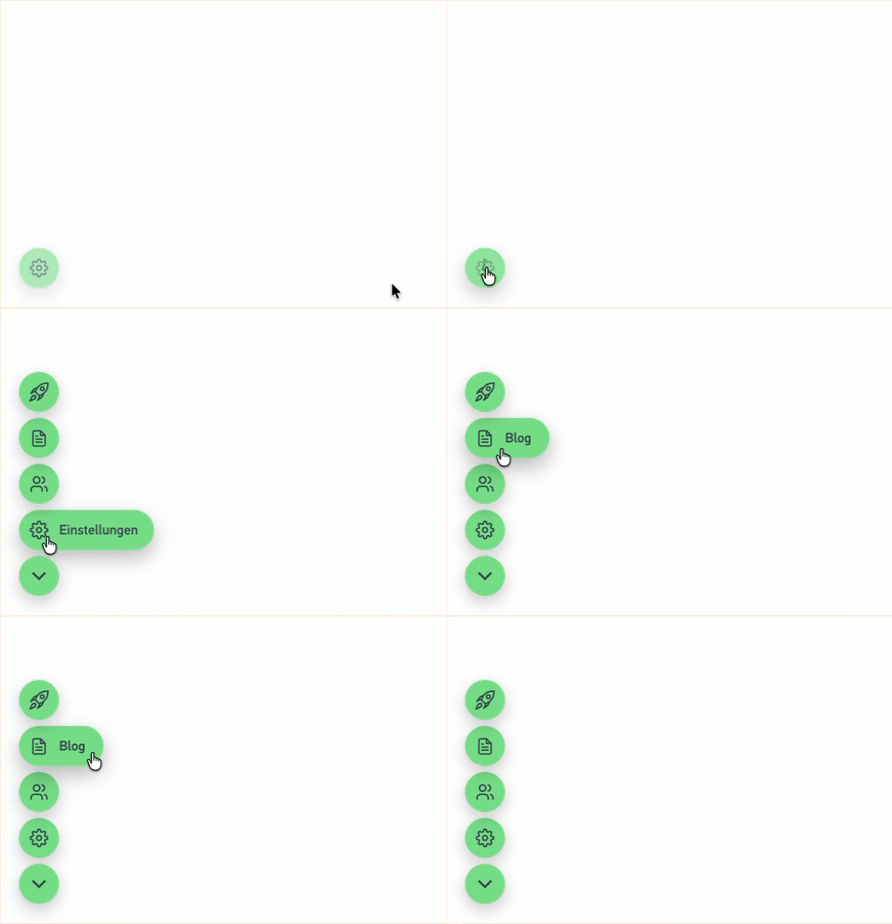
Starting July 22, 2026, it will be in a new, more prominent location: Click the green gear icon in the lower-left corner of your project page. A navigation menu will then open, where you can select “Blog.”
A blog post consists of several parts:
- Visibility: You decide who can see the blog post on your project page and who receives the email.
- Title: The title should make it clear what the post is about.
- Text: In the text, you explain your news, update, or insight in more detail.
- Media link: You can insert a media link (YouTube, Vimeo, Spotify, or SoundCloud). The media player will appear after the text.
- Image Gallery: You can add up to 5 images. They will be automatically cropped to a square; you can adjust the crop. At least JPG and PNG formats are supported. The first image will be used as the cover image and will also appear in the email.
You can use emojis in the title and body text if they fit your project and your community.
What types of media can I include in a blog post?
You can include one media link per blog post, which will then be embedded on the blog post page. Supported platforms include YouTube, Vimeo, Spotify, SoundCloud, and many others. You can find all the technical details in the oEmbed documentation.
Pay special attention to videos (YouTube, Vimeo) to make sure they are set to allow embedding. If embedding is disabled, the media player will not appear in the blog post.
In addition, you can upload up to 5 images for a gallery. They will be automatically cropped to a square, but you can adjust the cropping. At least JPG and PNG formats are supported. The first image is especially important because it will be used as the featured image for the blog post and in the email.
What happens when you publish a blog post?
When you publish your blog post, it will appear on your project page, and the corresponding email will be sent immediately to the selected recipient group. Scheduled or timed sending is not currently available, but this feature is in the works.
Therefore, please check the following very carefully before publishing:
- Is the title clear?
- Is the text complete and correct?
- Have the media links and images been inserted correctly?
- Is the correct visibility setting selected?
- Are you sure you want to send this email to this group of recipients?
Can I still edit a blog post after it's been published?
Yes. You can edit a published blog post at any time. No new email will be sent when you do so.
You can also hide a blog post again. Then it will no longer appear on your project page.
But there’s one thing you can’t undo: You can’t recall an email that’s already been sent, and the text of your blog post is also included in the email. Therefore, any changes you make afterward will only affect how it appears on your project page, not the email that’s already been sent.
So when you first publish a post, make sure everything is correct. Here’s a typical example: If a link in a blog post is set incorrectly, the email will still go out immediately—and you’ll miss the chance for your community to click on it.