
Postfunder at a Glance
Postfunder helps you manage your crowdfunding campaign. You can manage backer contributions and rewards, create documents, organize shipping, and keep your supporters informed.
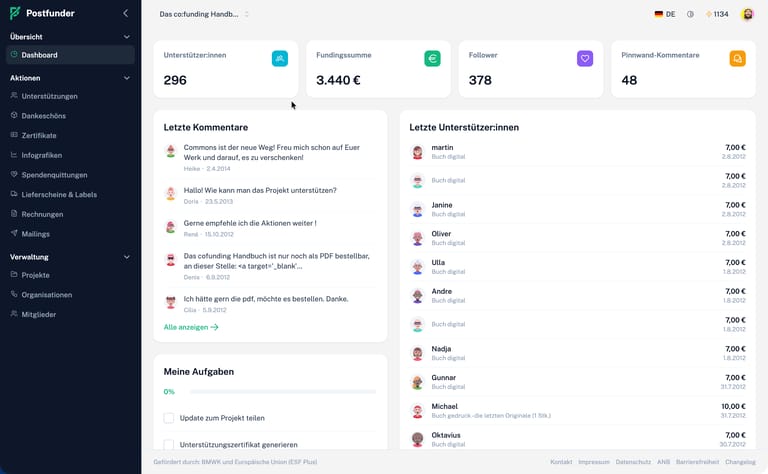
When can you use Postfunder?
Postfunder is intended for projects that have reached their funding goal and are moving into the fulfillment phase:
- During the funding phase, you can use Postfunder once your project has reached at least 100 percent of its funding goal.
- Once the funding round has been successfully completed, Postfunder will remain available.
- Postfunder is not available for projects that were not successfully funded or archived.
The current project initiator activates the project for Postfunder. Before activation, only a limited overview is available. Afterward, the project data and the features enabled for the respective plan can be used.
What features does your plan include?
The range of features depends on your Startnext project plan. Higher-tier plans include all the features of the lower-tier plans.
| Plan | Features Included in Postfunder |
|---|---|
| Basic | Manage donations and thank-you notes, create certificates and templates, design infographics, prepare information on revocation, and send basic mailings |
| Pro | All basic functions, as well as invoices, donation receipts for nonprofit projects, and advanced email campaigns |
| Premium and Enterprise | All Pro features, as well as delivery slips, shipping labels, logistics exports, and advanced address validation |
The system automatically detects which plan applies to your project. If a feature requires a higher-tier plan, only the current project owner can perform the necessary upgrade. In this case, team members will receive a notification asking them to coordinate with the project owner.
How do you sign up and activate your project?
Log in with your Startnext account. Postfunder will show you the projects for which you have a valid project role.
- Select your project.
- If you are the current project initiator, activate the project for Postfunder.
- Wait until the support and thank-you gifts are ready.
- Then begin processing the transaction.
Team members can view or edit content depending on their role in the project. The current starter remains responsible for managing the plan, the organization, and the members.
How do you manage and export donations?
Available starting with the Base model
In the list, you can see all the contributions to your project. You can filter, sort, and edit them, and export the current view as an Excel file.
- Filter: Narrow down the list by, for example, "Thank You," "Country," or "Status."
- Edit Addresses: Update shipping or billing addresses.
- Customize thank-you notes: Edit the assigned thank-you notes in the respective entry.
- Show Columns: Display thank-you messages as separate columns to plan the delivery.
- Export: Download the currently filtered view as an Excel file.
How do you find and edit suspicious entries?
Available starting with the Base model
Postfunder alerts you to potential duplicate entries, missing information, or implausible addresses. This allows you to address any outstanding issues before creating or sending documents.
- Open the list of support options.
- Select the filter for anomalies.
- Check the selected entries.
- Correct any incorrect information or clarify any unclear cases.
Advanced address verification is available with a Premium subscription.
How do you prepare your thank-you gifts?
Available starting with the Base model
In the Thank-You Management section, you can review and update prices, VAT rates, and shipping costs. This information is required for invoices and shipping planning.
- Open "Thank You" in your project.
- Check the suggested unit prices.
- Adjust prices as needed.
- Enter the VAT rate and shipping costs.
- If necessary, break down combined thank-you items into individual line items.
Carefully review tax information. Postfunder helps you prepare, but does not replace tax advice.
How do you create invoices?
Available starting with the Pro plan
Postfunder generates invoices based on the prices, VAT rates, and shipping costs you've entered.
- Check the details of your thank-you gifts.
- Open "Documents" and then "Invoices."
- Select individual recipients or all of them.
- Check for any notes indicating missing information.
- Create and download the invoices.
As the person issuing the invoice, you are responsible for its tax compliance.
How do you prepare donation receipts?
Available starting with the Pro plan for nonprofit projects
If your project is registered as a nonprofit, you can generate donation receipts individually or in batches.
- Verify that the nonprofit status is correctly recorded.
- Open "Documents" and then "Donation Receipts."
- Select individual recipients or all of them.
- Create and download the documents.
- If necessary, send them by email.
Donation receipts may only be issued by nonprofit organizations. Consult an expert to resolve any outstanding legal or tax issues.
How do you handle shipping and logistics?
Available with Premium or higher
Postfunder helps you with delivery slips, shipping labels, packing lists, and logistics exports.
- Open the Documents and Mailing section.
- Select the document or export format you need.
- If needed, filter by "Thank You" or country.
- Prepare the documents.
- Download them and use them for packaging and shipping.
How do you create certificates and infographics?
Available starting with the Base model
With personalized certificates and infographics, you can thank your backers and showcase your campaign's results. Names, amounts, or the project name can be automatically included.
- Select the desired format.
- Describe the content and design.
- Check the preview.
- Create content for one or more supporters.
- Download them or send them via email.
How do you send out mailings?
Basic mailings available with the Basic plan; advanced mailings available with the Pro plan
You can send messages to all supporters or specifically to certain groups and individuals.
- Open "Mailings."
- Create a new message.
- Select the recipients.
- Write and review the content.
- First, send a test email to yourself.
- Then start the shipping process.
The scope and options for mailings vary depending on the plan. The available scope is displayed directly in Postfunder.
How do you work with your team?
You can invite team members and grant them different permissions depending on their role:
- Viewers can view content.
- Editors can edit content.
- Project administrators can also view current project data.
- The current Starter manages planning, organization, and members.
Invite only people who need access to project and support data.
What other apps are available for beginners?
In addition to Postfunder, there are two other public apps. They are designed for different phases and tasks of your campaign:
Runway
Runway is the funding coach that helps you plan and manage your campaign. The app is available to active or successfully funded projects starting with the Pro plan. Team members can view or edit content depending on their role.
Passport
Pass helps you manage tickets and admission for events. The app is available to active or successfully funded projects on the Pro plan or higher.
What should you know about costs and liability?
- The plan for your Startnext project determines which features are included.
- Additional services may require credits. The applicable costs will be displayed before you use the service.
- You remain responsible for invoices, donation receipts, tax information, and any content you send out.
- Postfunder helps you with the preparation and processing, but does not replace legal or tax advice.