
With a custom unit, you can display your financial goals and progress in your own unit instead of euros. This feature is available starting with the Pro plan. The units displayed are calculated based on monetary amounts—they do not represent actual order or person counts.
Convert funding goals and progress to units
You set a fixed shopping cart value as a reference. This determines the monetary amount that each unit represents. Startnext uses this to convert your funding status and goals into units.
This includes the amounts of money received—even unsolicited donations without a thank-you gift. The display does not show how many times a specific thank-you gift has been purchased. It also does not correspond to the number of your supporters.
Example: You want to publish a book and set the reference cart value per book at 60 €. For the unit, enter “book” in the singular and “books” in the plural. Your first funding goal of 15,000 € then corresponds to 250 books. A milestone goal of 40,000 € corresponds to 667 books (rounded up). When the funding total reaches 6,000 €, your project will display “100 books out of 250.” The 100 books are calculated based on the funding amount—they do not mean that 100 books have actually been ordered.
The financial basis remains in euros: Prices for thank-you gifts, payments, payouts, and the determination of whether your funding goal has been reached are not affected by the display of amounts in other units.
Set Up a Custom Unit
This feature is available starting with the Pro product plan.
- In the project interface, open Crowd & Funding > Funding Goals and go to the Funding Status section.
- Turn on "Show progress in units."
- Under "Individual Unit," enter the terms in the "Unit (Singular)" and "Unit (Plural)" fields—for example, "book" and "books." Each field can contain up to 10 characters.
- In the "Cart Value (€)" field, enter the amount in euros that should correspond to one unit. The value must be greater than 0 €. Choose it carefully: Once the campaign starts, the cart value can no longer be changed.
- Check the conversion of your funding goals directly in the settings of the project interface. There, for each goal, you'll see the amount in euros divided by your reference shopping cart value, and the resulting number of units. Target quantities are rounded up to whole units.
- If necessary, enter what the funding goal or milestone goal stands for—for example, “the book” or “the book tour”—in the corresponding fields. You have a maximum of 20 characters available for each field.
- Save your settings and check your project page to see if the unit and progress are displayed as intended.
A single shopping cart total applies to the entire project. Your milestones use the same total; you cannot set a separate exchange rate for them.
You can learn more about planning your goals under "Financial Goals."
Display on the project page and in other views
The display will be used in the header of your project page, in the project boxes, in the goals overview on your project page, and in the shareable graphics. In the project header, it replaces the previous display of the amount and percentage.
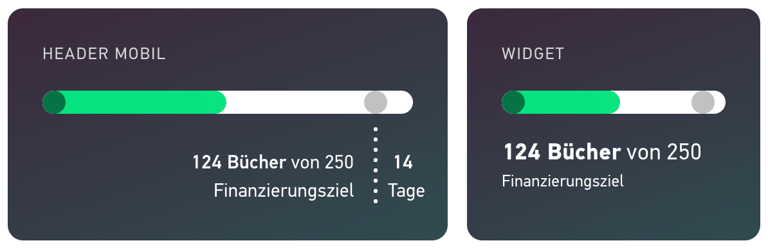
The first goal is displayed as a minimum amount; additional goals are displayed as milestones. An optional label explains what the goal represents.
As soon as your first funding goal in euros is reached, the display will switch to the next milestone, provided you have set one. The euro amount remains the determining factor for whether the goal has been reached.
Exception: The external embed widget remains in euros. If you've embedded your project on another website using this widget, the display will not be converted to your custom currency. Booking and payment for contributions also remain in euros.
Changing Settings During the Financing Period
You can customize the name of your unit and the labels for your goals, as well as turn the display on or off. The cart value cannot be changed once the campaign has started.
If you turn off the custom unit, progress will be displayed in euros and as a percentage again. Your settings for the custom unit will remain saved.
You can find the other rules regarding changes to the project under "Adjustments During the Funding Phase."
Explain the concept in a way your audience can understand
Choose a name that fits your project without promising actual orders or people. In your project description, explain what amount in euros each unit represents and that the display is calculated based on the current funding total.
Avoid statements like “100 copies sold” when you’re simply converting a monetary amount into units. Your audience should be able to understand what the number means—and what it doesn’t.